
What Colors Make Green? Mixing Green in Art & Digital Design
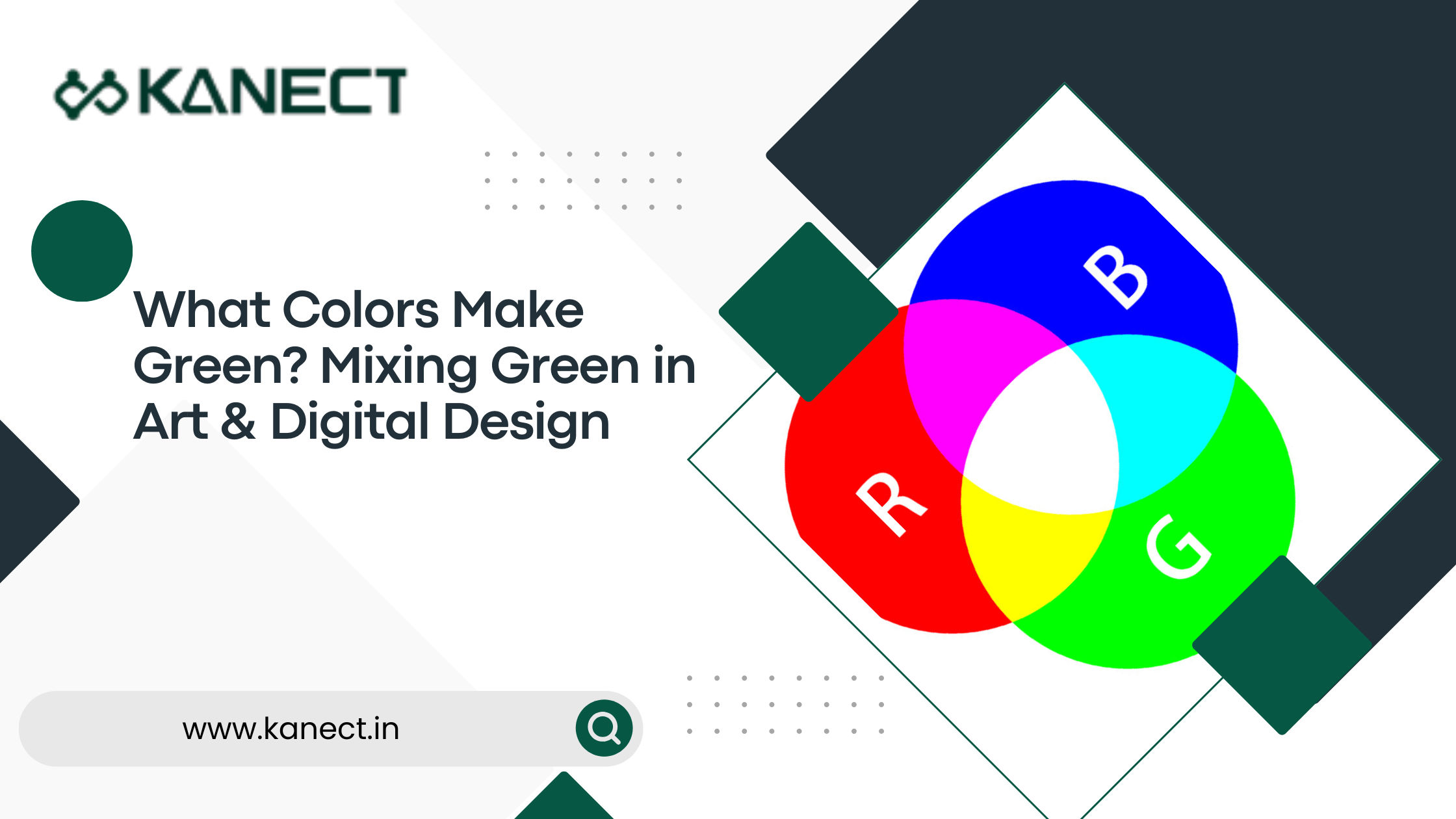
Green is one of the most recognizable colors in nature, representing growth, freshness, balance, and creativity. Whether you’re a graphic designer, digital artist, painter, or beginner learning color theory, understanding what colors make green can help you create more accurate and visually appealing designs.
In this guide, we’ll explain how green is created in both traditional painting and digital design, along with practical tips for achieving different shades of green.
What Colors Make Green?
The answer depends on the color system you’re using.
- Traditional painting (RYB/CMY): Blue + Yellow = Green
- Digital design (RGB): Green is already a primary color and cannot be created by mixing red and blue.
Understanding the difference between these color models is essential for artists and designers.
How Green is Created in Traditional Color Mixing
In painting, printing, and other physical media, green is created by combining blue and yellow pigments.
This works because pigments absorb and reflect different wavelengths of light. When yellow and blue pigments are mixed, they reflect green wavelengths, producing various shades of green.
Basic Formula
Blue + Yellow = Green
The exact shade depends on the pigments you use.
For example:
- Lemon Yellow + Cerulean Blue → Bright Green
- Cadmium Yellow + Ultramarine Blue → Deep Green
- Yellow Ochre + Prussian Blue → Olive Green
How to Mix Different Shades of Green
Once you’ve created a basic green, you can customize it easily.
Make Green Lighter
Add:
- White
- More yellow
This creates fresh spring greens and pastel shades.
Make Green Darker
Add:
- More blue
- A tiny amount of black
- Dark brown (for natural greens)
Avoid adding too much black, as it can make the color look muddy.
Make Green Warmer
Mix in:
- Yellow
- Orange (very small amount)
Warm greens are commonly used for leaves, landscapes, and natural illustrations.
Make Green Cooler
Add:
- Blue
- Cyan
Cool greens work well for water, forests, and digital interfaces.
Green in RGB Color Mode
If you’re creating artwork in software like Photoshop, Illustrator, Canva, or Figma, you’re working in the RGB color model.
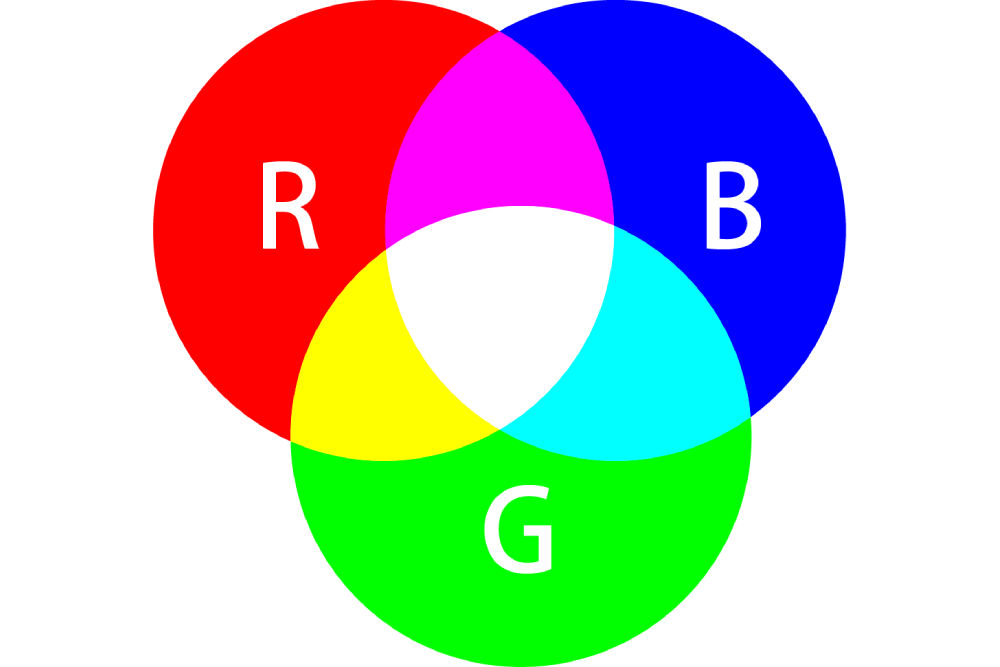
RGB stands for:
- Red
- Green
- Blue
Unlike paint, these colors are made using light instead of pigments.
Here, green is one of the three primary colors, meaning it cannot be produced by combining red and blue.
Pure green is represented as:
RGB: (0, 255, 0)
Hex Code: #00FF00
Different RGB values create different shades of green.
Examples:
| Color | RGB |
|---|---|
| Lime | (0,255,0) |
| Forest Green | (34,139,34) |
| Olive | (128,128,0) |
| Sea Green | (46,139,87) |
| Mint Green | (152,255,152) |
Green in CMYK Printing
For printed materials like brochures, business cards, and magazines, designers use the CMYK color model.
Green is primarily produced by combining:
- Cyan
- Yellow
Adding black (K) helps create darker, richer greens.
How to Make Green in Digital Design Software
Modern design software provides several ways to create the perfect shade of green.
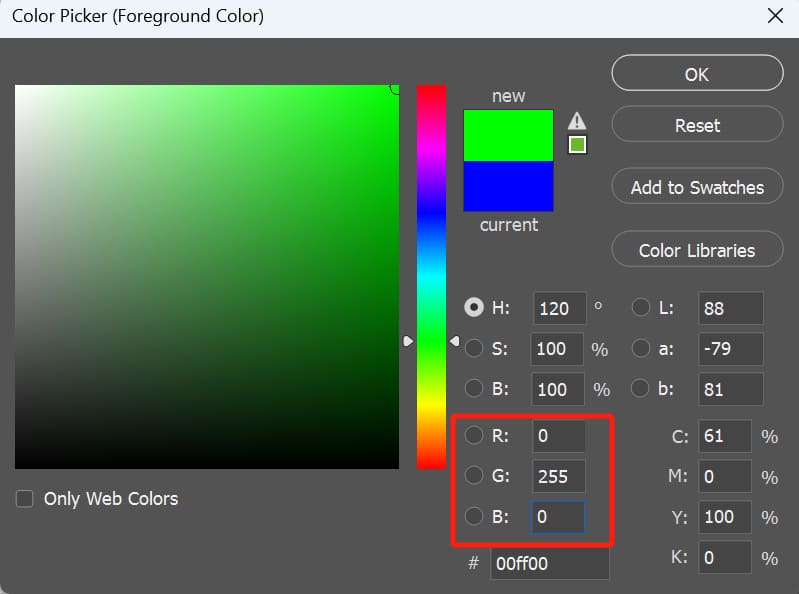
1. Use the Color Picker
Most software allows you to enter:
- RGB values
- HEX codes
- HSL values
This is the fastest way to achieve consistent colors.
2. Use the Color Wheel
Applications like Adobe Photoshop, Illustrator, Figma, and Procreate let you select green directly from the color wheel and fine-tune its brightness and saturation.
3. Apply Gradient and Blending Tools
Designers often create richer greens using:
- Layer blending
- Gradient maps
- Opacity adjustments
- Color overlays
These techniques produce more realistic and visually appealing artwork.
Popular Green Color Variations
Some commonly used green shades include:
- Emerald Green
- Forest Green
- Olive Green
- Mint Green
- Sage Green
- Lime Green
- Sea Green
- Neon Green
- Moss Green
- Pine Green
Each serves different design purposes, from branding and UI design to landscape illustrations.
Common Mistakes When Mixing Green
Avoid these mistakes for cleaner results:
- Using too much blue, which creates dull greens.
- Adding excessive black, making colors muddy.
- Mixing incompatible pigments.
- Ignoring the difference between RGB and traditional paint mixing.
Understanding the color model you’re working in prevents confusion and ensures accurate results.
Tips for Designers and Digital Artists
If you’re working digitally:
- Save frequently used green shades as custom swatches.
- Use HEX codes for consistent branding.
- Calibrate your monitor for accurate color representation.
- Test colors on multiple devices before publishing.
These practices help maintain consistency across websites, apps, and print materials.
Frequently Asked Questions
What two colors make green?
In traditional painting, blue and yellow create green.
Can red and blue make green?
No. Red and blue create shades of purple, not green.
Why is green a primary color in RGB?
RGB uses light instead of pigments. Green is one of the three primary light colors: red, green, and blue.
What is the HEX code for pure green?
Pure green is:
#00FF00
How do you make dark green?
Mix your green with more blue, dark brown, or a very small amount of black.
How do you make light green?
Add white or additional yellow to your existing green mixture.
Final Thoughts
Knowing what colors make green is essential whether you’re painting on canvas or designing on a computer. While traditional artists create green by mixing blue and yellow, digital designers work with RGB, where green already exists as a primary color.
By understanding these color systems and experimenting with different shades, you can create vibrant, natural-looking greens for illustrations, branding, websites, UI design, and digital artwork.
Whether you’re a beginner or a professional designer, mastering color mixing is a valuable skill that improves every creative project.
